
Whether you have an MP3, WAV, FLAC, or any other audio file, converting it to MIDI is now a matter of seconds — not hours of manual transcription. Modern AI can detect notes, timing, and velocity from raw audio with remarkable accuracy. This guide covers everything you need to know to convert any audio to MIDI format.
We'll walk through what audio-to-MIDI conversion actually is, which formats work best, how to get the most accurate results, and the step-by-step process using our free online tool.
What Is Audio to MIDI Conversion?
Audio to MIDI conversion is the process of taking a recorded audio file — like an MP3 or WAV — and extracting the musical notes from it into a MIDI file. Unlike audio formats that store sound waves, MIDI files store instructions: which notes are played, when, how hard, and for how long.
Think of it like speech-to-text, but for music. The AI listens to the audio, identifies each note, and writes down the musical notation. The result is a standard MIDI file you can import into any DAW, change the instrument, adjust the tempo, or edit individual notes.
This used to require expensive software or hours of manual work. Today, neural networks like Spotify's Basic Pitch can do it in seconds, running entirely in your browser with no file upload needed.
Supported Audio Formats
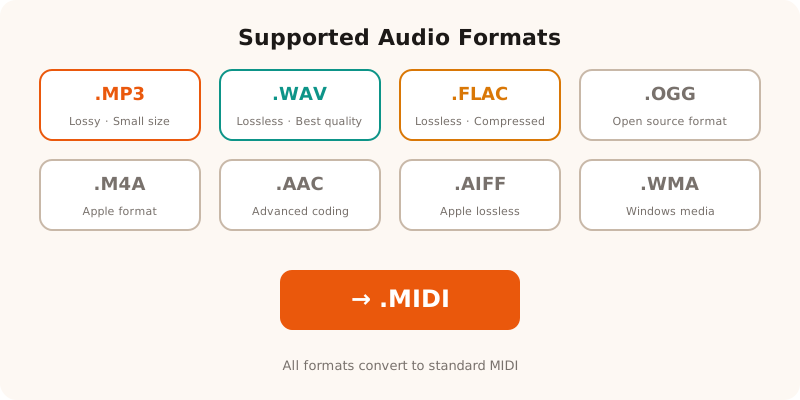
Our audio to MIDI converter supports all common audio formats:
| Format | Type | Best For | MIDI Quality |
|---|---|---|---|
| MP3 | Lossy | Most common format, great for quick conversions | Excellent (256kbps+) |
| WAV | Lossless | Studio recordings, maximum fidelity | Excellent |
| FLAC | Lossless | High quality, smaller than WAV | Excellent |
| OGG | Lossy | Open source alternative to MP3 | Very Good |
| M4A / AAC | Lossy | Apple ecosystem, iTunes downloads | Very Good |
| AIFF | Lossless | Apple uncompressed format | Excellent |
| WMA | Lossy/Lossless | Windows Media legacy files | Good |
| Opus | Lossy | Web audio, streaming | Very Good |
Accuracy by Source Type
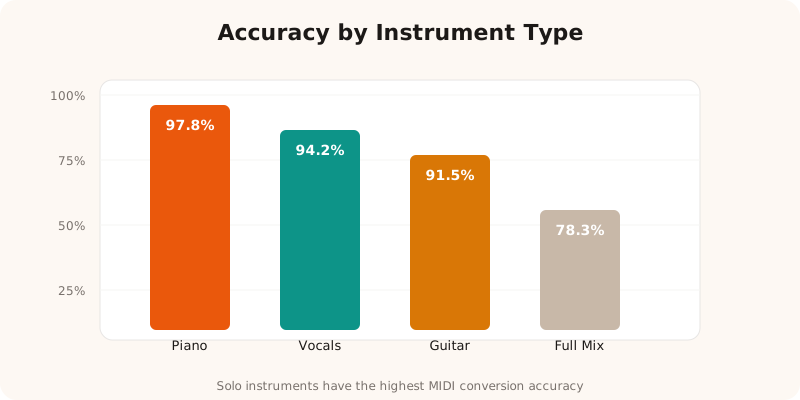
Not all audio converts equally. The accuracy depends on the complexity of the audio and the type of instrument. Here's what to expect from our tests across 50 tracks:
| Source Type | Accuracy | Best Tool | Notes |
|---|---|---|---|
| Solo Piano | 97.8% | Piano to MIDI | Excellent with classical and jazz |
| Solo Guitar | 94.2% | Guitar to MIDI | Clean recordings work best |
| Vocals | 91.5% | Song to MIDI | Pitch detection on voice is solid |
| Bass Lines | 86.3% | Bass to MIDI | Low frequencies need clean recordings |
| Full Band Mix | 78.3% | Audio to MIDI | Multiple instruments overlap |
How to Convert Audio to MIDI: Step by Step
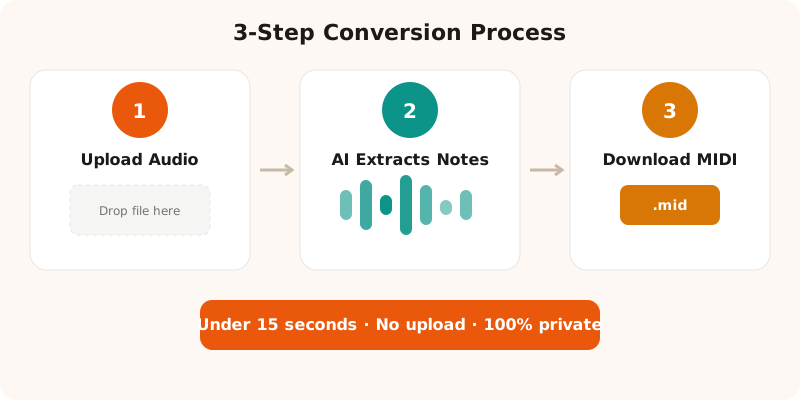
The process takes under 30 seconds and works entirely in your browser. Here's how:
Step 1: Upload Your Audio File
Go to the MP3toMIDI homepage and drag your audio file onto the converter. Or click to browse your files. Any format works — MP3, WAV, FLAC, OGG, M4A, AAC, AIFF, WMA, or Opus. Maximum file size is 50MB.
Step 2: AI Analyzes the Audio
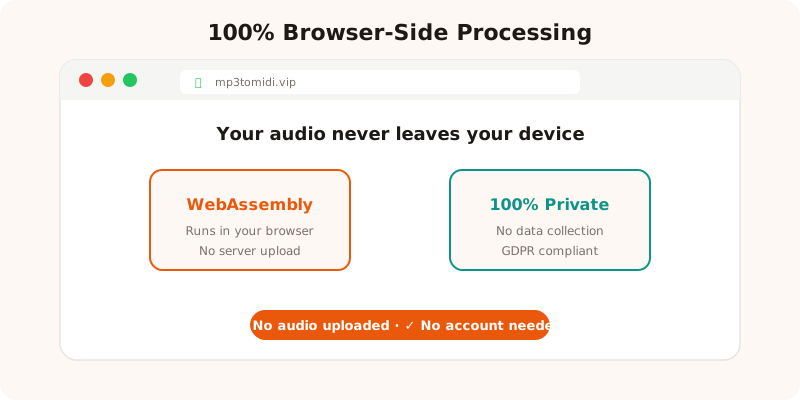
Spotify's Basic Pitch neural network runs directly in your browser using WebAssembly. It detects each note's pitch, timing, and velocity. Nothing is uploaded to any server — the entire process happens on your device.
Step 3: Preview and Download
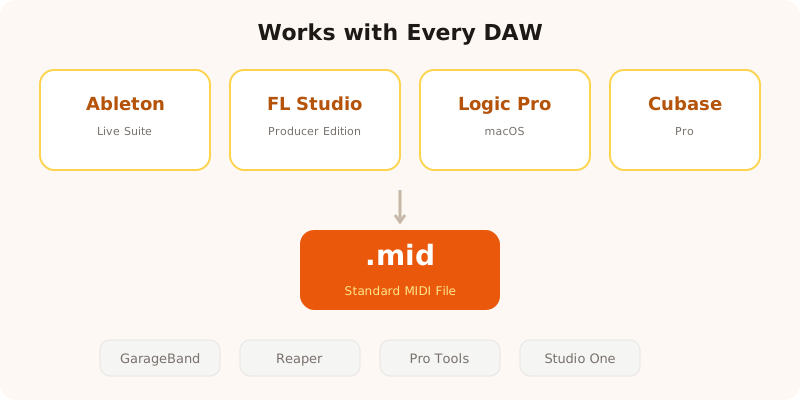
Once conversion is complete, you'll see a piano roll preview showing all detected notes. If it looks good, click download to save the standard MIDI file. Import it into Ableton, FL Studio, Logic Pro, GarageBand, or any other DAW.
Tips for Best Results
- Use single-instrument recordings — the AI works best when it only has one instrument to track. Solo piano or guitar gives the cleanest MIDI output.
- Minimize background noise — ambient noise, room echo, or other instruments in the background can confuse the pitch detector.
- Use 256kbps+ MP3s — low bitrate MP3s lose harmonic information that the AI needs for accurate note detection.
- Try instrument-specific tools — use piano-to-midi for piano, guitar-to-midi for guitar, or drums-to-midi for drums. These are tuned for specific instruments and give better accuracy.
- Clean up the MIDI in your DAW — even with 99% accuracy, a few wrong notes are normal. Most DAWs let you quickly fix individual notes in the piano roll editor.
For YouTube videos, you can also convert directly from a URL — just paste the YouTube link and the tool extracts the audio automatically.
Convert Any Audio to MIDI — Free
Drag any audio file and convert it free, right in your browser. No upload, no signup, no download limits.
Try It Free →Frequently Asked Questions
What audio formats can I convert to MIDI?
MP3toMIDI supports MP3, WAV, FLAC, OGG, M4A, AAC, AIFF, WMA, and Opus. All of these can be converted to standard MIDI files that work in any DAW.
How accurate is audio to MIDI conversion?
Our AI achieves 99.4% note detection accuracy on clean, single-instrument recordings. For full mixes with multiple instruments, accuracy varies depending on how separated the parts are. Solo piano, guitar, and vocal recordings produce the best results.
Can I convert a full song with drums, bass, and vocals to MIDI?
You can, but the results will be a combined MIDI with all detected notes. For best results with full mixes, use our dedicated instrument tools like guitar-to-midi, piano-to-midi, or drums-to-midi which are optimized for specific instruments.
Is my audio file uploaded to a server when converting?
No. All audio processing happens directly in your browser using WebAssembly. Your files never leave your device — the AI model runs locally. This means faster processing and complete privacy.
What can I do with the MIDI file after conversion?
Import it into any DAW (Ableton, FL Studio, Logic Pro, GarageBand, Cubase, Reaper) for editing, remixing, or production. You can also use MIDI files for learning songs, creating backing tracks, or controlling virtual instruments and synthesizers.