
Converting an MP3 to MIDI used to require expensive software and a degree in audio engineering. In 2026, it takes about 5 seconds and zero technical knowledge. This tutorial walks you through the entire process — from uploading your audio file to importing the MIDI into your DAW.
Whether you're a musician trying to learn a song's notes, a producer sampling a melody, or a student creating sheet music, this guide has you covered.
What Is MIDI (And Why Convert to It)?
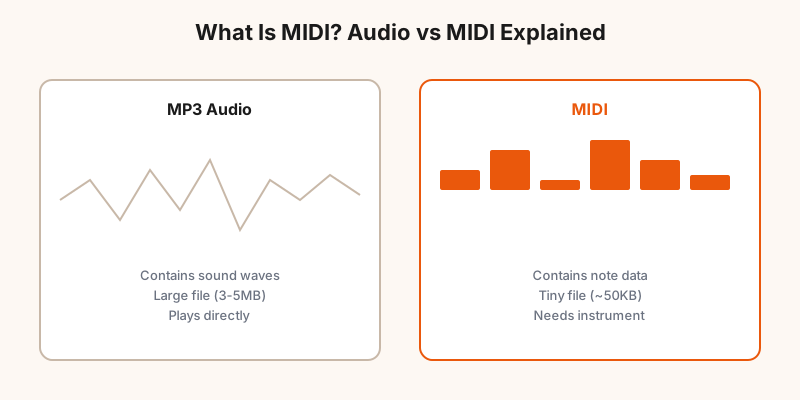
MIDI (Musical Instrument Digital Interface) is a protocol and file format that stores musical performance data — not sound. A MIDI file knows which notes were played, when they started and stopped, how hard they were hit (velocity), and which instrument was used. But it doesn't contain any actual audio.
Think of it like a recipe vs a photograph of a cake. The MP3 is the photograph — it shows you exactly what the cake looks like. The MIDI is the recipe — it tells you exactly how to make it, and you can change the ingredients.
Why convert MP3 to MIDI?
- Edit individual notes — fix wrong notes, change timing, adjust velocity
- Change instruments — play a guitar melody on piano, or vice versa
- Learn songs — see exactly which notes are being played
- Create sheet music — import MIDI into notation software
- Remix and sample — extract melodies or chord progressions
- Practice — slow down without pitch change
Step-by-Step: How to Convert MP3 to MIDI

Step 1: Open the Converter
Go to mp3tomidi.vip in any modern browser (Chrome, Firefox, Safari, or Edge). No sign-up, no download, no plugin. The tool runs entirely in your browser.
Step 2: Upload Your MP3
Drag and drop your MP3 file onto the upload area, or click "Choose File" to browse your device. You can also convert WAV, FLAC, OGG, M4A, AAC, AIFF, WMA, or Opus files. The tool accepts any audio format.
Step 3: Wait for Conversion
The AI analyzes your audio in real-time, detecting notes, timing, and velocity. For a typical 3-minute song, this takes about 3-5 seconds. You'll see a progress indicator while it works. The processing happens on your device — nothing is uploaded.
Step 4: Download the MIDI
Once conversion is complete, click "Download MIDI" to save the .mid file to your device. You can now open it in any DAW, notation software, or MIDI player.
That's it. Four steps, no technical knowledge required. You can also convert YouTube to MIDI directly by pasting a URL.
Quality Tips for Better MIDI Output
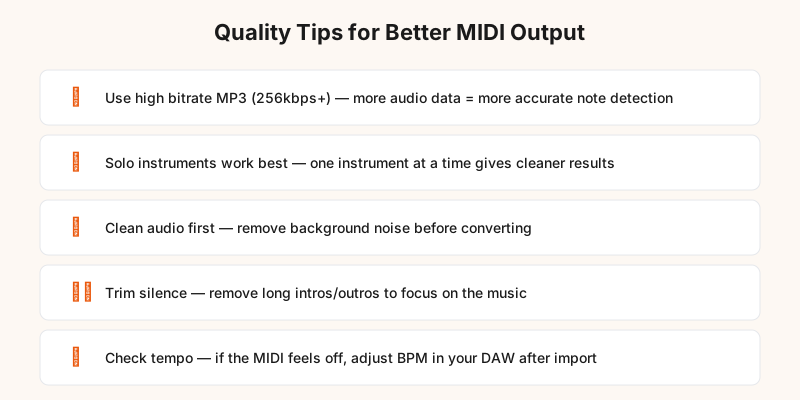
The quality of your MIDI output depends heavily on the input audio. Here's how to get the best results:
1. Use high-quality audio. If you have a choice between a 128kbps MP3 and a 320kbps MP3, use the 320kbps version. Better yet, use WAV or FLAC. More audio data means more accurate note detection.
2. Isolate the instrument. If you're trying to convert a guitar part from a full band recording, the AI will pick up all instruments. Use a solo recording or an isolated track for best results. Guitar to MIDI and piano to MIDI work best with solo recordings.
3. Clean up the audio first. Background noise, hiss, and room ambience can confuse the pitch detector. Use a noise reduction tool before converting if your audio is noisy.
4. Trim silence. Long intros, outros, and silent sections don't help — they just add processing time. Trim your audio to the actual music.
5. Check the tempo. If the MIDI timing feels off, it might be a tempo detection issue. Check the BPM in your DAW and adjust if needed.
Common Mistakes to Avoid
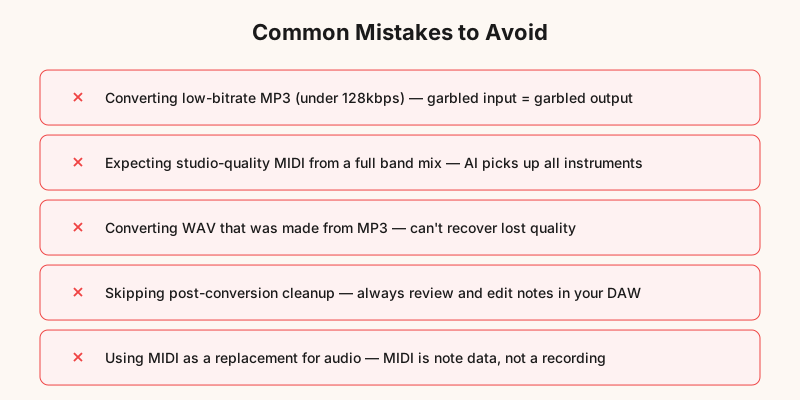
We see the same mistakes over and over. Here's what to avoid:
Converting low-bitrate MP3. Anything below 128kbps has significant compression artifacts that will confuse the pitch detector. If your only option is a low-quality file, convert it anyway — but expect more errors.
Expecting perfection from full mixes. A full band recording with drums, bass, guitar, vocals, and keys is extremely difficult for any AI to untangle. The drums, bass, and other instruments will all get mixed together. For best results, use isolated tracks.
Converting WAV that was made from MP3. If someone gave you a WAV file that was originally exported from an MP3, converting it to WAV didn't restore the lost quality. The compression artifacts are baked in. Use the original source if possible.
Skipping post-conversion cleanup. Even the best converter isn't perfect. Always open the MIDI in your DAW and review the notes. Fix any wrong notes, adjust timing, and clean up the output before using it.
Confusing MIDI with audio. MIDI doesn't make sound on its own. If you play a .mid file and hear a basic piano sound, that's your player's default instrument — not a reflection of the MIDI quality. Assign a proper virtual instrument in your DAW.
How to Import MIDI into Your DAW
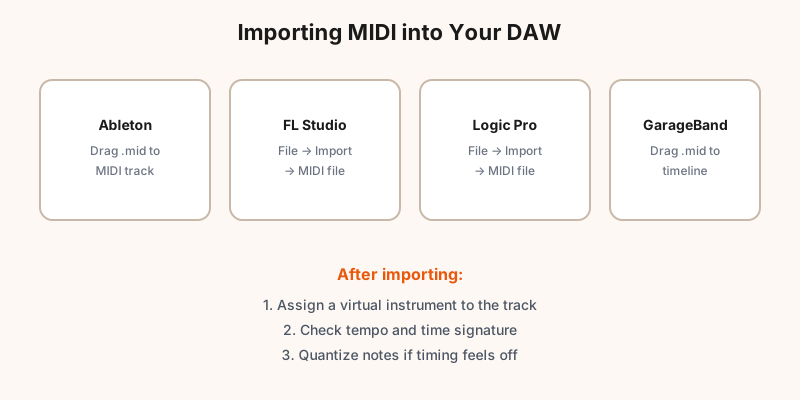
Once you've downloaded your MIDI file, here's how to import it into the most popular DAWs:
Ableton Live: Drag the .mid file directly onto a MIDI track. Ableton will import the notes and tempo automatically. Assign an instrument to the track to hear it.
FL Studio: Go to File → Import → MIDI file. Select your .mid file. FL Studio will ask which channel to import to. Choose a channel with a virtual instrument loaded.
Logic Pro: Go to File → Import → MIDI file. Logic will create new tracks for each MIDI channel in the file. Assign instruments to each track.
GarageBand: Drag the .mid file onto the timeline. GarageBand will create a new software instrument track with the MIDI data. It works on both Mac and iPad.
After importing, check the tempo and time signature. The converter should detect these automatically, but complex pieces with tempo changes might need manual adjustment. You can also use the audio to MIDI tool for any other audio format.
Ready to Convert Your MP3?
Free, fast, and private. No sign-up needed. Works on any device.
Convert MP3 to MIDI Free →Frequently Asked Questions
What is MIDI and why would I convert MP3 to it?
MIDI (Musical Instrument Digital Interface) is a file format that stores musical note data — which notes are played, when, and how hard. Unlike MP3, MIDI doesn't contain sound. You convert MP3 to MIDI when you want to edit individual notes, change instruments, learn a song's notes, or create sheet music from audio.
Is converting MP3 to MIDI free?
Yes. MP3toMIDI offers free MP3 to MIDI conversion with no sign-up required. The free tier handles files up to 10 minutes. There are no watermarks, no daily limits, and no hidden fees. Just upload your MP3 and download the MIDI.
How accurate is MP3 to MIDI conversion?
Accuracy depends on the source audio. Solo piano or guitar tracks achieve 90-97% note accuracy. Vocal tracks are around 85-93%. Full band mixes with multiple instruments are harder — expect 75-85% accuracy. Using high-bitrate MP3 (256kbps+) and clean audio improves results significantly.
Can I convert MP3 to MIDI on my phone?
Yes. MP3toMIDI works on any device with a modern browser — iPhone, Android, iPad, laptop, desktop. No app installation needed. Just open the website in Chrome, Safari, or Firefox and follow the same steps. The conversion runs locally in your browser.
Why does my MIDI file sound different from the original MP3?
MIDI files don't contain audio — they contain note instructions. When you play a MIDI file, it uses whatever instrument sound is assigned in your music software (DAW). By default, most players use a basic piano sound. To change the sound, open the MIDI in a DAW like Ableton, FL Studio, or GarageBand and assign a different virtual instrument.