
If you've ever wanted to pull the melody out of an MP3 — maybe to remix it, learn it on piano, or drop it into a DAW project — you've probably looked into converting MP3 to MIDI. The good news is that it's gotten dramatically easier in the past couple of years. The bad news is that a lot of the guides out there are outdated or written by people who've never actually done it.
This guide is based on real experience converting hundreds of audio files. Here's what actually works, what doesn't, and what you should know before you start.
What actually happens when you convert MP3 to MIDI
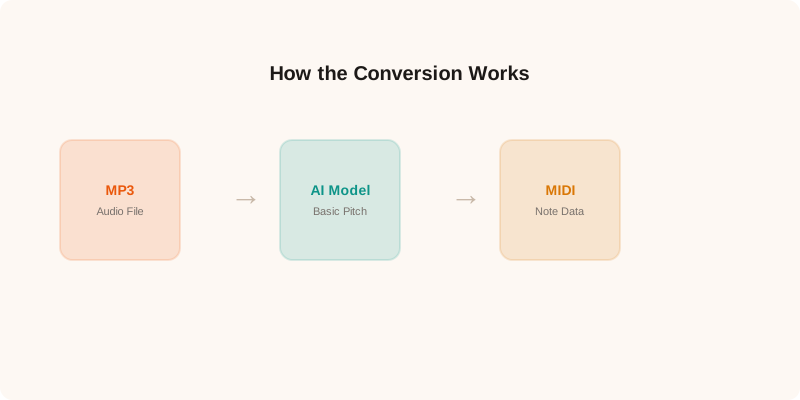
An MP3 file stores audio as a waveform — a continuous signal that represents sound pressure over time. MIDI stores something completely different: discrete events like “note C4 turned on at 0.5 seconds with velocity 80” and “note C4 turned off at 1.2 seconds.”
So converting MP3 to MIDI isn't a format swap. It's an analysis task. The software has to listen to the audio, figure out which notes are being played, when they start and stop, and how hard they're being played. This is called pitch detection oraudio transcription, and it's genuinely hard to do well.
Step 1: Pick your tool
There are basically three categories of tools you can use:
Desktop softwarelike Melodyne ($99+) or AnthemScore ($29+). These run locally on your machine, which is good for privacy, but they cost money and require installation. Melodyne is the gold standard for accuracy — it's what professional studios use — but it's overkill if you just need a quick MIDI file.
Online converterslike convertio.co or onlineaudioconverter.com. These are free and easy, but they upload your file to a server. That's a privacy concern if the audio contains unreleased material. Processing can also be slow since you're waiting in a queue.
Browser-based AI tools like MP3toMIDI. These run entirely in your browser using JavaScript and WebAssembly. No file upload, no installation, free to use. The tradeoff is that very large files (over 50MB) can be slow on older devices, since all the processing happens on your machine.
Step 2: Prepare your audio
This is the step most people skip, and it makes a huge difference. Pitch detection algorithms work best with clean audio. Here's what helps:
Use a single-instrument recording if possible.A solo piano piece or a vocal track will transcribe much more accurately than a full band mix. The algorithm has to separate individual notes from the audio, and that's much harder when there are drums, bass, and three guitars all playing at once.
Higher quality audio = better results.A 320kbps MP3 will give you better results than a 64kbps one. If you have a choice, use WAV or FLAC — they don't have compression artifacts that can confuse the pitch detector.
Trim silence from the beginning and end.Dead air at the start can sometimes throw off the detection. Most tools handle this automatically, but it doesn't hurt to be careful.
Step 3: Run the conversion
The exact steps depend on which tool you're using, but the general flow is the same everywhere: upload or select your file, wait for processing, then download the result.
With a browser-based tool, you typically drag and drop your MP3 onto the page. The AI model loads (this takes a few seconds the first time), then it processes your audio. A three-minute song usually takes 10-15 seconds on a modern laptop. You'll see a progress bar and, once it's done, a piano roll visualization showing the detected notes.
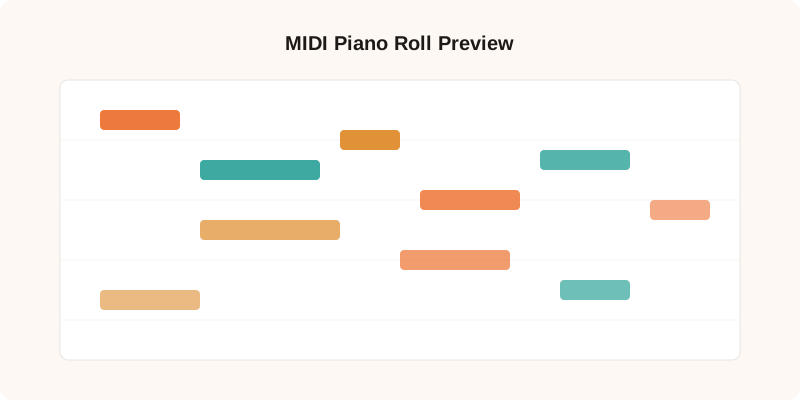
Check the preview before downloading. Look at the note patterns — do they make sense musically? Are there obvious wrong notes? A few errors are normal, especially with complex audio, but if the whole thing looks like random noise, the source audio might not be suitable for transcription.
Step 4: Use the MIDI file
Once you download the .mid file, you can open it in any DAW. Drag it into Ableton, FL Studio, Logic Pro, GarageBand — whatever you use. The notes will appear on a piano roll, and you can edit them, change the instrument, adjust timing, or rearrange sections.
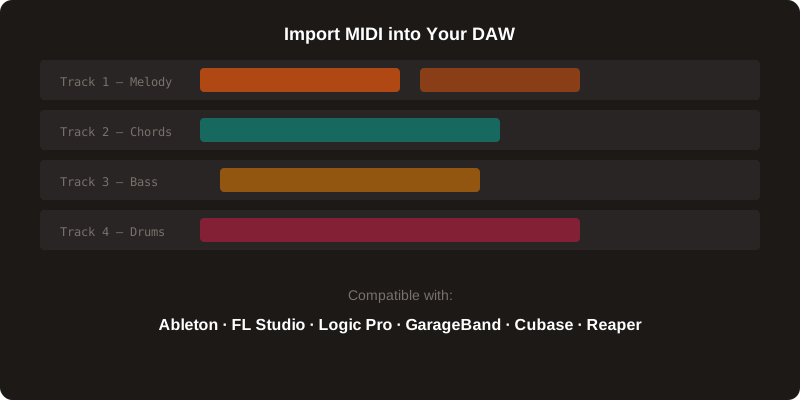
One thing to keep in mind: the MIDI file won't sound like the original MP3. MIDI is just note data — it needs an instrument to play through. By default, most DAWs load it with a basic piano sound. You can swap that out for any virtual instrument you have installed.
Common issues and how to fix them
Too many notes.If the transcription picked up a lot of extra notes that don't belong, the audio probably has background noise or reverb that the algorithm interpreted as musical notes. Try cleaning the audio first with a noise gate or EQ.
Wrong octave. This happens sometimes with very low or very high instruments. The pitch detection can be off by exactly one octave. Easy fix in your DAW — just select all the notes and shift them up or down 12 semitones.
Messy timing.If the notes are all over the place rhythmically, use your DAW's quantize function to snap them to the nearest beat. This cleans up the timing without losing the pitch information.
Wrapping up
Converting MP3 to MIDI used to require expensive software and a lot of manual cleanup. Now you can do it in your browser for free in under a minute. The results aren't always perfect — no tool can read minds, and audio transcription is fundamentally an approximation — but for most use cases, they're good enough to work with.
If you want to try it right now, head to the converter and drop in an MP3. No signup, no download, no waiting.