
You've converted an MP3 to MIDI. You open the file and... it sounds terrible. Generic, thin, lifeless. Like a MIDI file from 1995. What happened?
Nothing went wrong with the conversion. The issue is that MIDI files don't contain any sound — they're just note instructions. When you play them back, the sound you hear depends entirely on what instrument is interpreting those instructions. Most default MIDI players use a basic General MIDI sound set that was designed for compatibility, not quality.
The fix is SoundFonts. A good SoundFont can make your MIDI transcription sound like it was played on a real instrument. Here's how to use them.
What is a SoundFont, exactly?
A SoundFont (.sf2) is a file that contains audio samples of a real instrument, mapped across the MIDI note range. A piano SoundFont, for example, might contain recordings of a Steinway grand piano — one sample for each key, at multiple velocity levels (soft, medium, hard). When your MIDI player hits a note, it finds the matching sample and plays it.
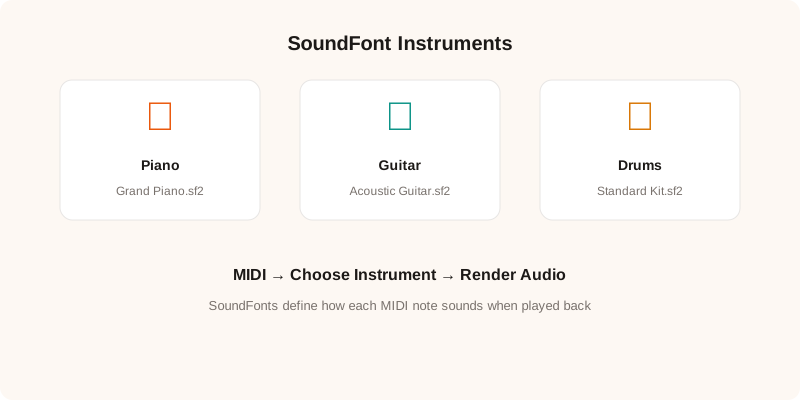
The format was created by Creative Labs in the '90s for their Sound Blaster sound cards. It's been around forever, which means there are thousands of free SoundFonts available online. Quality varies wildly — some sound amazing, others sound like a toy keyboard. But the good ones are genuinely impressive.
Where to find good SoundFonts
MuseScorehas a large collection of free SoundFonts, including their default “MuseScore General” set which covers every instrument in a standard orchestra. It's a solid all-rounder if you don't want to hunt for individual instruments.
FreeSoundProjecthosts community-contributed SoundFonts. The quality is inconsistent, but there are some hidden gems — particularly their piano and guitar collections. Read the comments before downloading; they'll tell you if a particular SoundFont is worth your time.
HammerSoundis a smaller site focused on high-quality synth and keyboard SoundFonts. If you're converting electronic music or need synth pads and leads, this is the place to look.
For piano specifically, look for SoundFonts labeled “multi-layer” or “velocity sensitive.” These have different samples for different playing intensities, which makes the output sound much more natural than a single-sample SoundFont.
How to use SoundFonts with your MIDI files
There are a few ways to do this, depending on what tools you have:
In a DAW:Most DAWs support SoundFont loading through built-in or free plugin instruments. In FL Studio, use “Fruity SoundFont Player.” In Ableton, you'll need a free plugin like “Sforzando” or “FluidSynth.” Load the SoundFont into the plugin, load your MIDI onto the same track, and hit play.
Standalone players:If you don't have a DAW, standalone SoundFont players like SynthFont (Windows) or Polyphone (cross-platform) can play and render MIDI files with SoundFonts directly. These are lightweight and purpose-built for exactly this workflow.
Web-based:Some online tools let you upload both a MIDI file and a SoundFont, then render the audio in your browser. This is the easiest option if you don't want to install anything.
Matching SoundFont to source material
This is where people often go wrong. If you converted a guitar solo to MIDI, don't play it back through a piano SoundFont — it'll sound weird. Match the SoundFont to the original instrument as closely as possible.
For vocals, use a choir or voice SoundFont. The results won't sound like the original singer (MIDI can't capture vocal timbre), but at least the tonal quality will be in the right ballpark.
For full band mixes, the transcription will usually pick up the melody line. A piano or electric piano SoundFont is a safe default — it won't sound like the original, but it'll be musically useful for learning the melody or creating an arrangement.
Making it sound good
A few finishing touches can take your MIDI playback from “obviously computer-generated” to “listenable”:
Add reverb.Even a small room reverb makes a huge difference. Dry samples sound like they're playing in a vacuum. A touch of reverb places them in a physical space.
Adjust velocity.If your transcription has uniform velocity (every note at the same volume), manually vary it. Humans don't play every note at the same intensity. Even random velocity variations between 60-100 make the output sound more alive.
Quantize gently. Perfectly quantized MIDI (every note snapped exactly to the grid) sounds robotic. Use a light quantize setting (like 80% strength) to tighten the timing while keeping some human feel.
The goal isn't to recreate the original recording — that's impossible from MIDI alone. The goal is to make something musically useful that captures the notes and rhythm of the original. With a good SoundFont and a few tweaks, you can get there.