
MIDI files are great for editing, but they have a problem: you can't just send one to someone and expect them to hear music. MIDI is instructions, not audio. It's like handing someone sheet music — they need an instrument to actually hear it.
So if you want to share a MIDI composition as an actual audio file, you need torender it — feed the MIDI data through an instrument and record the output as MP3 or WAV. Here are three ways to do that, from easiest to most flexible.
Method 1: Use your DAW's export function
This is the most common approach, and it's what most producers end up doing. Every major DAW — Ableton, FL Studio, Logic Pro, GarageBand, Cubase, Reaper — can import MIDI files and export the result as audio.
The process is straightforward. Open your DAW, drag the MIDI file into a track, assign a virtual instrument to that track (piano, synth, whatever you want), then use the export or bounce function to render it as MP3 or WAV.
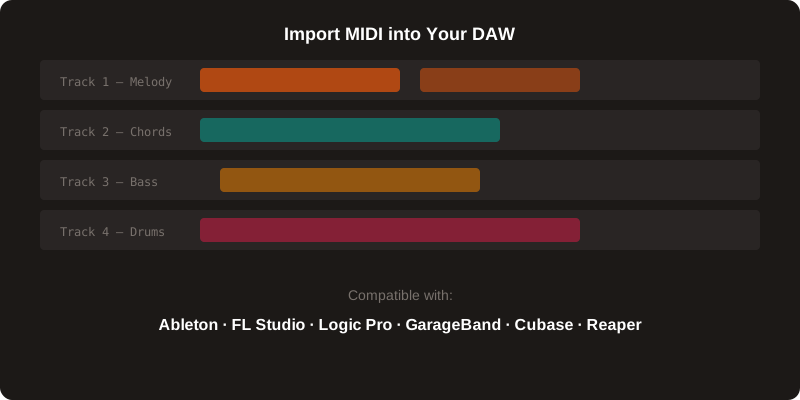
The advantage here is control. You can pick exactly which instrument plays each track, adjust volumes, add effects like reverb or delay, and mix everything before rendering. The downside is that you need a DAW installed, and there's a learning curve if you haven't used one before.
Quick tip:If you don't have a DAW yet, start with GarageBand (free on Mac) or Reaper (free to try, $60 to buy). Both handle MIDI import and audio export without any fuss.
Method 2: SoundFont renderers
A SoundFont (.sf2) is basically a sample library packed into a single file. It contains recordings of real instruments — pianos, guitars, drums, strings — mapped across the full keyboard range. When you play a MIDI file through a SoundFont, each note triggers the corresponding sample, producing realistic instrument audio.
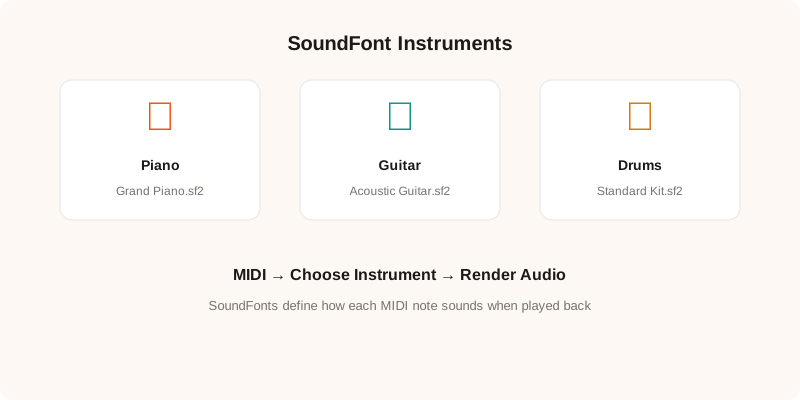
There are free SoundFont renderers available for every platform. On Windows, SynthFont is a popular choice. On Mac, Polyphone works well. There are also web-based renderers that let you upload a MIDI file and a SoundFont, then download the resulting audio — no installation needed.
The quality depends entirely on the SoundFont you use. A good piano SoundFont with multi-layer sampling (different samples for soft and hard playing) can sound remarkably realistic. A cheap one will sound like a toy keyboard from 1998. Free SoundFonts are available from sites like MuseScore and the Free SoundFont Project.
Method 3: Online MIDI to MP3 converters
If you just need a quick conversion and don't care about fine-tuning the sound, online converters are the fastest option. You upload your MIDI file, pick an instrument (usually just a general MIDI set), and download the MP3.
The catch is quality. Most online converters use a basic General MIDI sound set that sounds decent but not great. Think “early 2000s cell phone ringtone” quality. For a rough preview or a quick share, it's fine. For anything you plan to release or present professionally, use a DAW or a good SoundFont instead.
There's also the privacy consideration. You're uploading your MIDI file to someone else's server. For a cover of a pop song, who cares. For an original composition you haven't released yet, think twice.
Getting the best sound quality
Regardless of which method you use, a few things make a big difference in the final audio quality:
Choose the right instrument. If the MIDI was created from a piano recording, render it through a piano SoundFont, not a synth pad. Matching the instrument to the original intent produces more natural results.
Add a little reverb. Dry MIDI renders sound sterile and lifeless. Even a small amount of room reverb makes the audio sound like it was recorded in a real space. Most DAWs and SoundFont players have built-in reverb you can dial in.
Export at a decent bitrate.If you're rendering to MP3, use at least 192kbps. For archival or professional use, render to WAV first, then convert to MP3 only if you need the smaller file size.
Normalize the output.MIDI velocity values don't always translate directly to comfortable listening volumes. After rendering, check the peak levels and normalize if needed to avoid clipping or quiet playback.
Which method should you use?
If you have a DAW already installed, use that. It gives you the most control and the best quality. If you don't have a DAW and just want a quick conversion, try a SoundFont renderer — the quality is surprisingly good with a decent SoundFont. If you're in a hurry and don't care about quality, an online converter will do the job in seconds.
And if you're going the other direction — trying to get MIDI from an MP3 — check out our MP3 to MIDI conversion guide.